
Monitoring wireless LAN controllers
Site24x7 provides comprehensive monitoring for wireless LAN controllers (WLCs) and their associated access points, giving you real-time visibility into your wireless network's health, performance, and client activity. With WLC monitoring, you can track service set identifier (SSID) usage, monitor connected clients, and analyze bandwidth consumption to ensure optimal performance and fast troubleshooting for wireless environments.
Purposes
- Monitor WLCs and their associated access points to ensure optimal wireless network performance.
- Track the number of clients connected to each SSID and analyze their bandwidth usage.
- Gain insights into client-specific details like the IP address, MAC address, SSID, signal strength, and connection duration.
- Detect discrepancies in the client count or traffic spikes to facilitate faster troubleshooting and capacity planning.
Prerequisites
- Install the On-Premise Poller, version 6.4.4 or above, with network reachability to the WLC.
- Enable and configure SNMP access on the WLC.
- Add the correct SNMP credentials in Site24x7:
- SNMPv1/v2: The community string
- SNMPv3: The username, authentication and privacy protocols, and keys
Definition of terms used
Access points
Access points are hardware devices that connect Wi-Fi enabled devices to a wired network.
SSID
An SSID is a list of all the wireless networks broadcasted by your access points.
Clients connected
Clients Connected refers to the number of network devices that are linked to the access points in your organization's SSIDs.
Supported WLC vendors
Site24x7 supports WLC monitoring for devices from the following vendors:
- Aruba
- Autelan
- Cisco
- H3C
- Hongxin
- Huawei
- RUCKUS
- Ruijie
How it works
| Phase | Description |
|---|---|
| Discovery | Site24x7 automatically detects all access points and wireless clients under a WLC monitor using SNMP queries. |
| Monitoring | Periodic polling of the WLC is done to fetch key metrics such as the access point status, client count, signal strength, and bandwidth usage. |
| Visualization | The collected data is grouped by SSIDs and access points for easier analysis. Graphs, filters by the time range, and alert logs enable deeper insights into performance trends and events. |
Adding a WLC monitor
Make sure that SNMP is enabled and the appropriate credentials are configured for the WLC. Additionally, ensure that the WLC is correctly connected to its access points. Then, proceed to add the WLC as a monitor in Site24x7.
View WLC details
If you have added a WLC as a monitor in Site24x7, you can view details about the device and its associated SSIDs and access points by following these steps:
- Log in to your Site24x7 account.
- Navigate to Network > Network Devices.
- Click the WLC monitor that you've added.
- Navigate to the WLC tab to view details of the WLC, like the Access Points and SSID.
Managing access points
The Access Points tab lists all access points discovered from the Wireless LAN Controller (WLC). From this view, you can monitor, validate, and manage access points associated with the controller.
Bulk addition of access points
You can add multiple access points for monitoring directly from the Access Points tab.
To add access points in bulk:
-
Navigate to Network > WLC and select the required monitor.
-
Click the Access Points tab.
-
Click the plus icon + on the Monitored column to start monitoring the access point.
-
To add multiple access point monitors in bulk, select the required access points using the checkbox beside each device. Alternatively, you can also go to the Unmonitored Devices tab to filter all the unmonitored devices to add them for monitoring.
-
Click Add Selected Resources.
Unmapped devices
Access points that are no longer associated with the WLC configuration are moved to the Unmapped tab.
This can occur when:
- Access points are removed from the WLC configuration.
- Changes are made to the WLC settings.
- An access point no longer responds to the controller.
Unmapped device alert
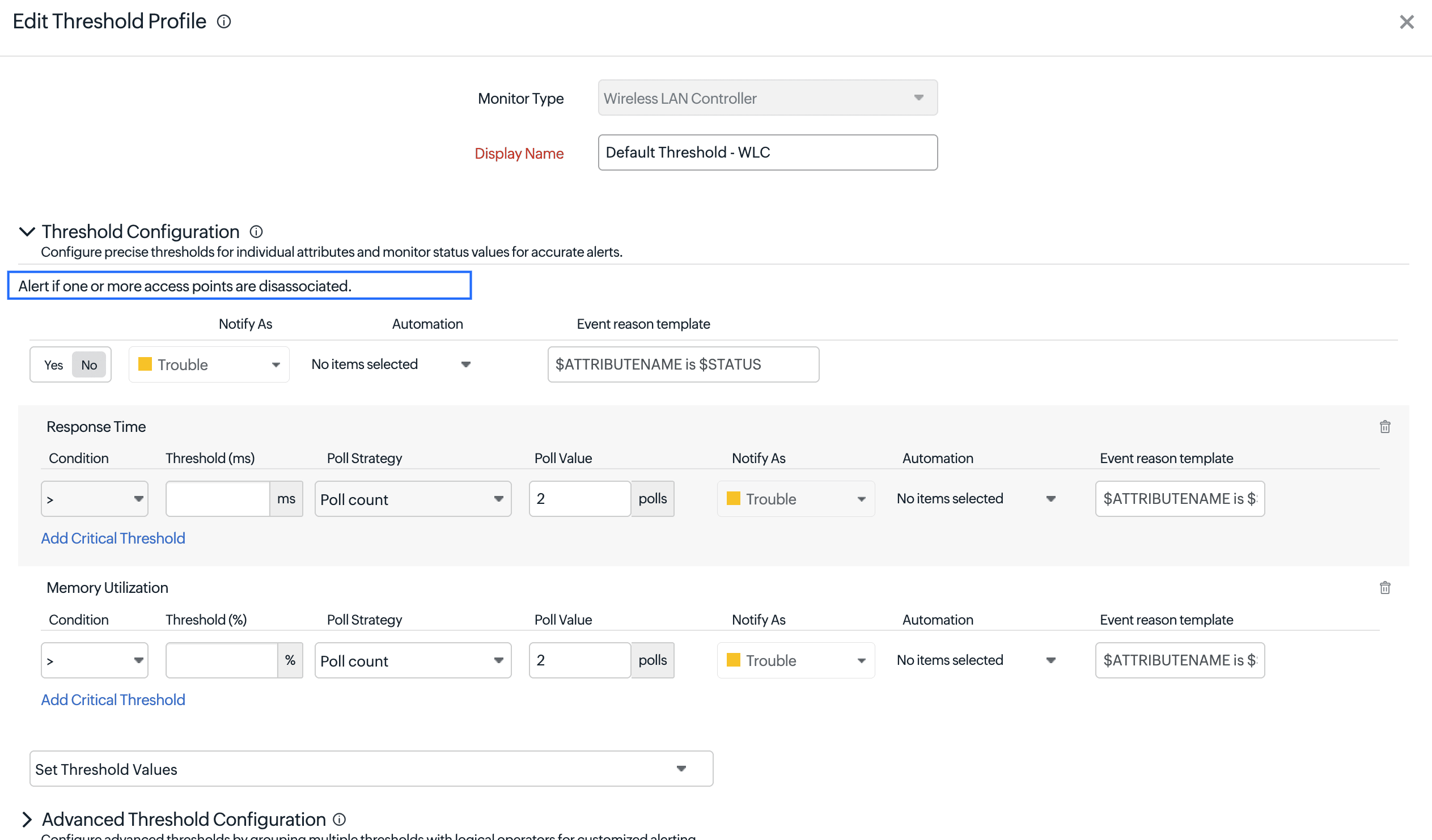
You can configure a threshold alert to notify you when access points become unmapped. Site24x7 allows you to detect when access points become disassociated from the WLC.
When enabled, Site24x7 triggers an alert whenever one or more access points are no longer associated with the WLC.
Use case
If several access points are removed due to a configuration change in the WLC, those devices will appear under Unmapped. Site24x7 will trigger an alert to help you verify whether the removal was intentional. This ensures that unexpected configuration changes or accidental removals do not go unnoticed.
Deleting unmapped access points
If the access points were intentionally removed from the WLC, you can delete them from the monitor.
You will continue to receive an alert for every poll until the unmapped access point is deleted. Once the access point is removed from monitoring, the alert will stop from the next poll.
To delete unmapped access points:
-
Go to the Access Points tab.
-
Click the Unmapped section.
-
Select the access points you want to remove.
-
Click Delete.
This removes the access points from monitoring and keeps your WLC inventory accurate.
Access Points
View and manage individual access points discovered through WLCs.
Active Clients
The Active Clients tab lists all clients currently connected to the access points under the WLC.
| Column | Description |
|---|---|
| Name | Hostname or identifier of the connected client. |
| IP Address | IP address assigned to the client device. |
| MAC Address | MAC address of the client. |
| SSID | The SSID through which the client is connected. |
| SNR | Signal-to-noise ratio, in dB, between the client's signal and the background noise. A higher value indicates a cleaner, more reliable connection. |
| Signal Strength | Strength, in dBm, of the wireless signal received from the client. |
| Access Point | The access point that the client is connected to. |
| Connection Duration | Time for which the client has remained connected to the access point. |
Weak Signal Clients
The Weak Signal Clients tab lists only the clients that have breached the configured signal strength threshold.
Configure the Alert if one or more client has low signal strength threshold, under Threshold Configuration, to define the signal strength value (in dBm) below which a client is considered weak. If no threshold is configured, the Weak Signal Clients tab remains empty.
Device Templates
View and select monitoring templates based on the system object identifiers for WLCs and access points.
Credentials
Manage SNMP credentials used for device discovery and monitoring.
Troubleshooting
To troubleshoot data collection issues, query the object identifiers corresponding to your issue.