
Performance Metrics of Ping Monitor
Interpret Ping Results
Ping Monitor tracks the accessibility of a specific host/IP address by performing periodic pings. It checks for the round trip latency to any host. Inside the homepage, navigate to the desired Ping Monitor to view the associated metrics. The metrics are detailed in the form of graphs, charts and tables that aid you to understand and do a comprehensive analysis of the Ping performance.
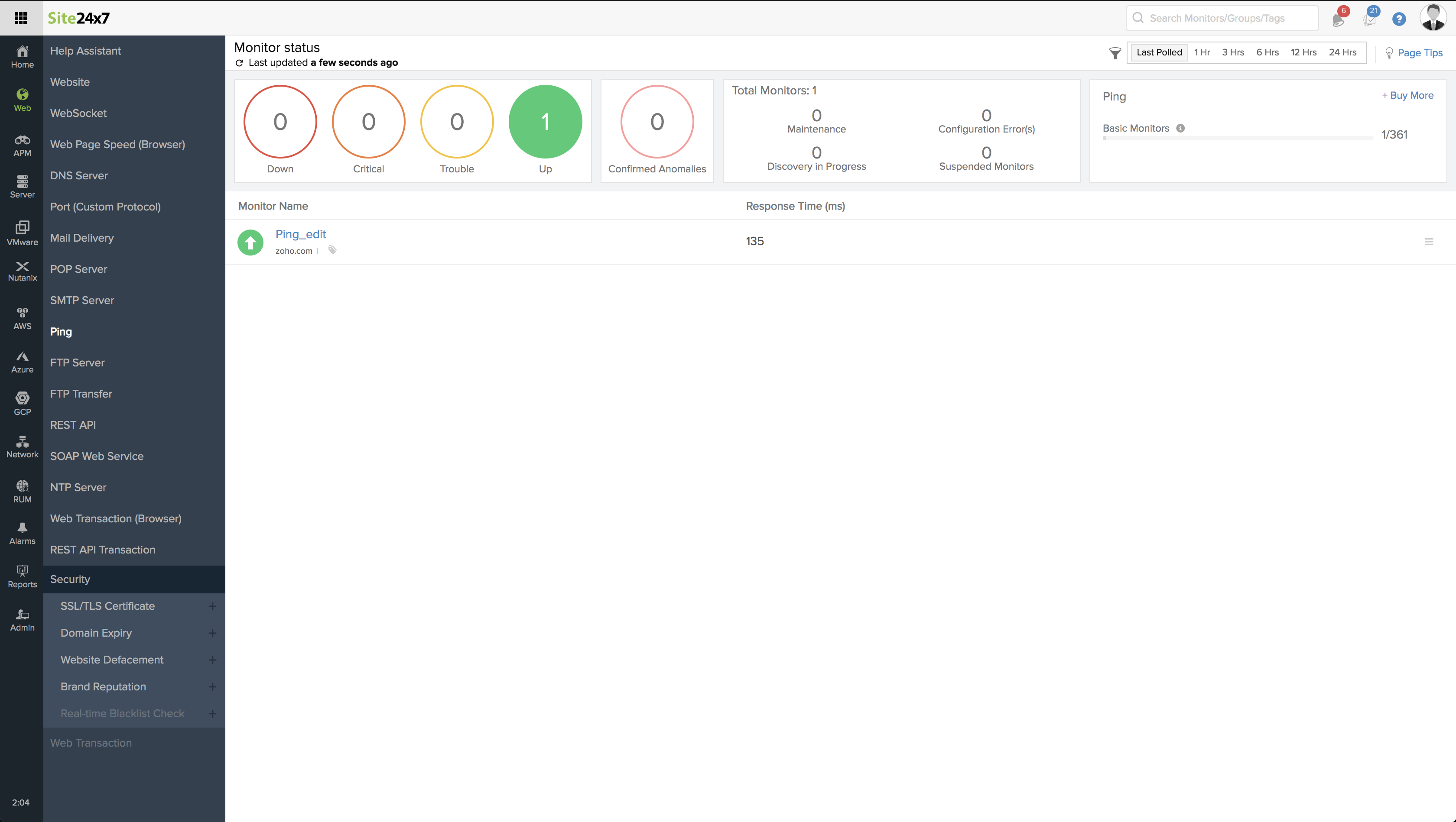
Site24x7's Web dashboard has a custom status banner, which identifies the various configured monitors by segregating them based on their operational status and state. You can also view the number of operational monitors and alert credits remaining in your account. By clicking the "+ Buy More" button, you can purchase additional monitors and alert credits. You can share the monitor details via an email. Email can be sent to only those verified users who have agreed to receive emails from Site24x7.
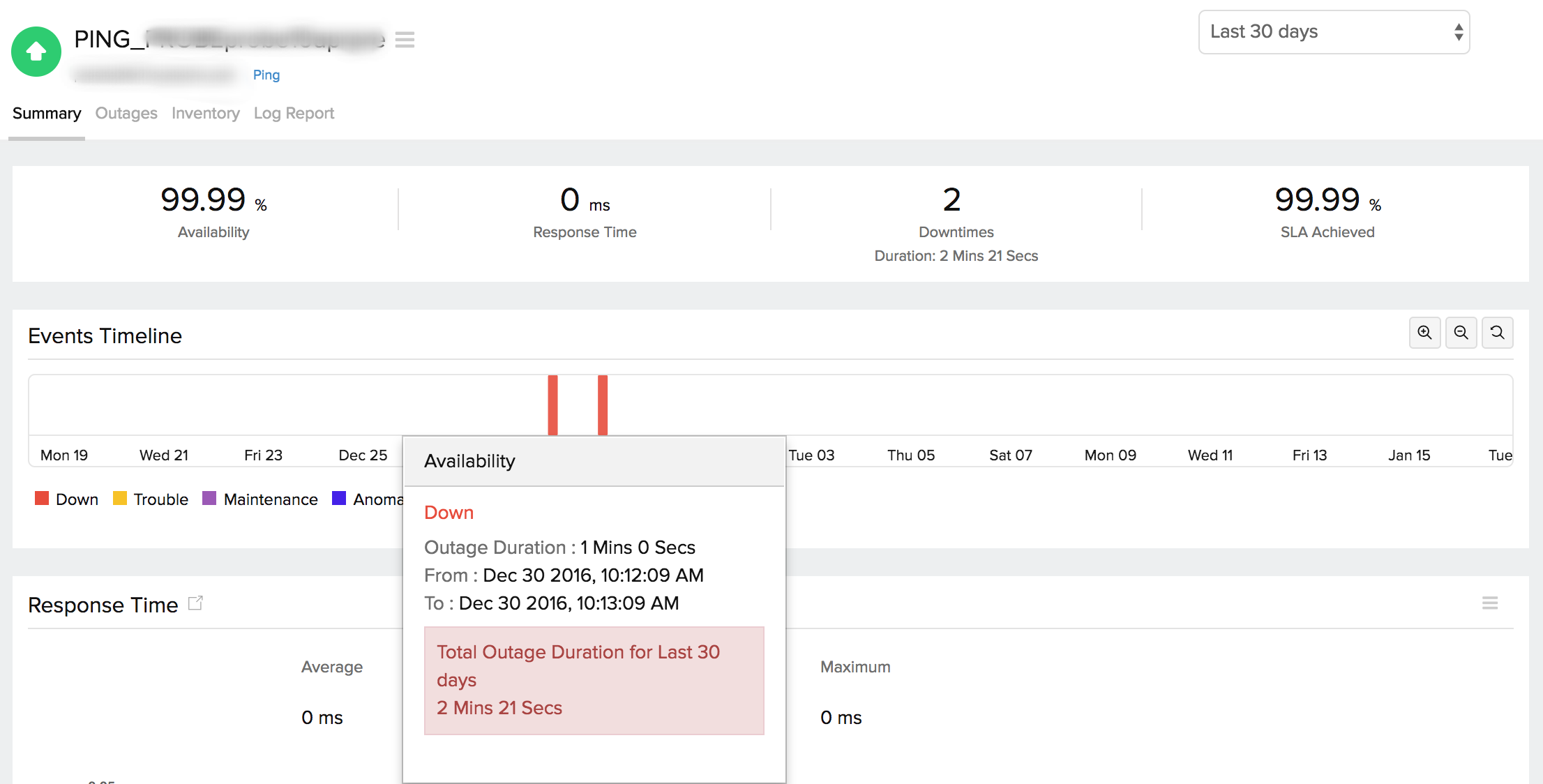
Events Timeline
Events timeline widget records all the past events of your selected monitor for a selected time range. You can identify/decode various events from the past, which includes Down, Critical, Trouble, Maintenance, Suspended, or Anomalies. Each event are color coded for easy identification. Events can be drilled down to extract maximum data and facilitate easy troubleshooting. You can also track the actual outage period and the total outage duration during a specific block of time.
The monitor dashboard page is split up into two sections:
- Response Time, which shows response time metrics of Ping monitor in a graphical format.
- Availability & Response Time by Location, which gives a graphical and tabular report of location wise availability and response time of the Ping Monitor.
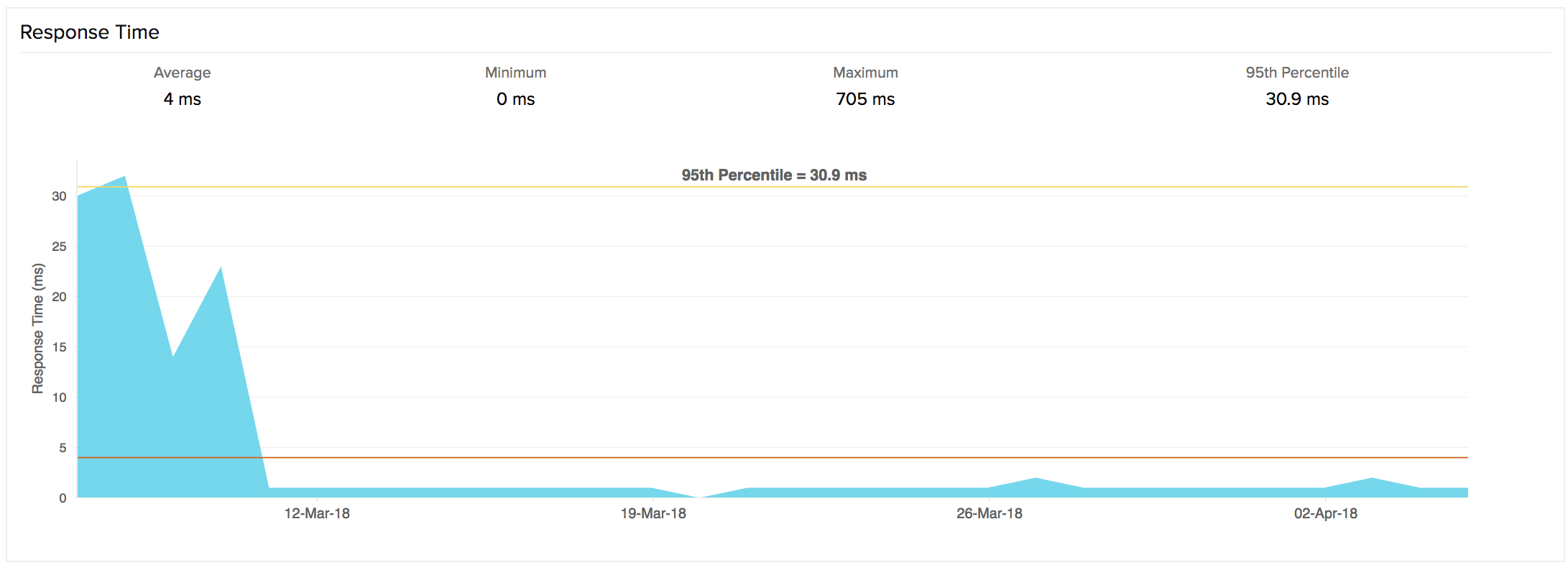
Response Time
Response Time of a Ping monitor is the time taken for each packet exchange between the pinger and the host server. The graph is computed by plotting time period against response time. Maximum, minimum, average, or 95th percentile response time can be estimated from this graph. You can further filter out the three point, five point moving averages and also the 95 percentile by selecting the appropriate legends. The graph also lets you zoom in and isolate the exact data from the graphical spikes. You can also add specific notes to inform users about the various outages and maintenance activities.
Graphical Representation
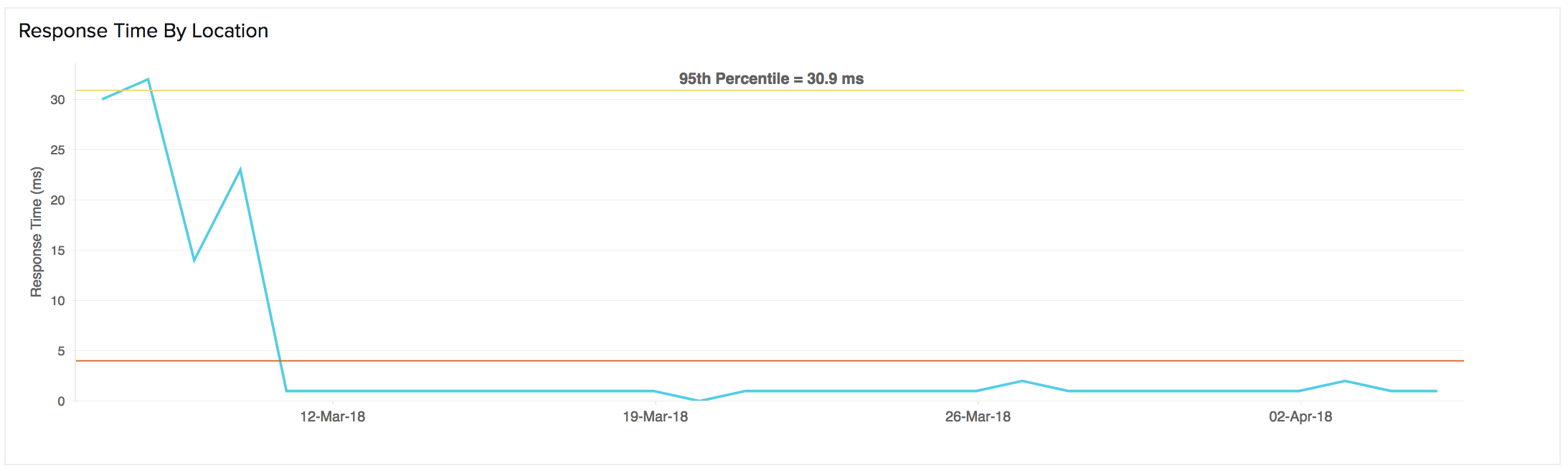
Response Time by Location
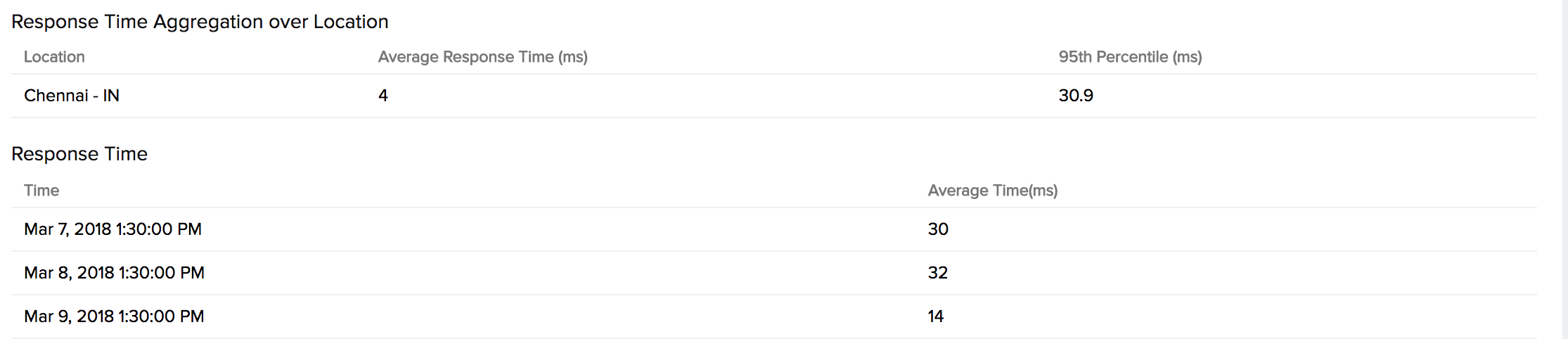
Response Time by Location graph shows the average and 95th percentile response time of the Ping Monitor for each day or hour from every monitoring location. This graph can be employed to analyze the Average Response Time of your monitor from different monitoring locations. The location is identified using legend given with the graph.
Tabular View
Average Response Time, Maximum response time, Minimum, or 95th Percentile response time of the Ping Monitor are detailed in a tabular layout. Average/95th Percentile Response Time By Location is defined based on the location selected.
Geo Map
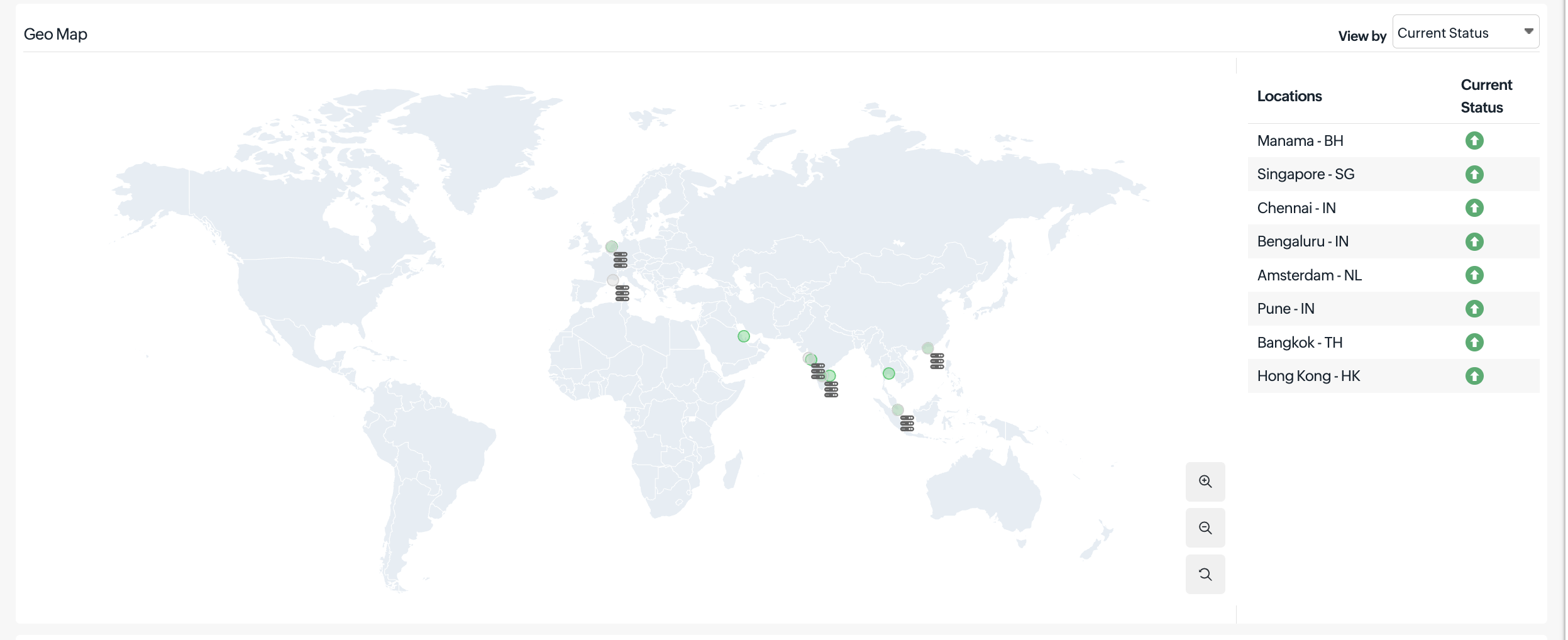
The Geo Map provides a visualization of your target host’s network reachability and status from multiple global monitoring locations. You can hover over different regions to view availability and other key metrics. This view helps you understand how quickly and reliably your host responds to Internet Control Message Protocol (ICMP) ping requests across geographies.
With the Geo Map, you can quickly identify regions with high network latency or packet loss, detect connectivity issues, and determine whether problems are localized or affecting multiple regions. This supports faster detection and resolution of network-level issues.
View by metrics
Select a metric to visualize availability and performance across locations. The Geo Map dynamically updates to reflect the chosen metric, allowing you to analyze trends.
- Response Time: Displayed using color gradients (green for lower latency and red for higher latency). Bubble size increases with higher round-trip time and decreases with faster responses, allowing you to easily identify latency-prone regions. Hovering over a location displays a tooltip with details such as monitoring location, average response time, and packet loss (if applicable).
- Availability (%): Represents the percentage of successful ping responses from each monitoring location. A color gradient (green for high availability, red for low) highlights regions experiencing packet loss or connectivity failures. Hovering over a location displays a tooltip with availability metrics.
- Current Status: Indicates the real-time status of each monitoring location. Green markers represent locations where the target is reachable (Up), while gray markers indicate resolved IP locations. This view helps you quickly assess the operational status and reachability of your host across all monitoring regions.
Updates
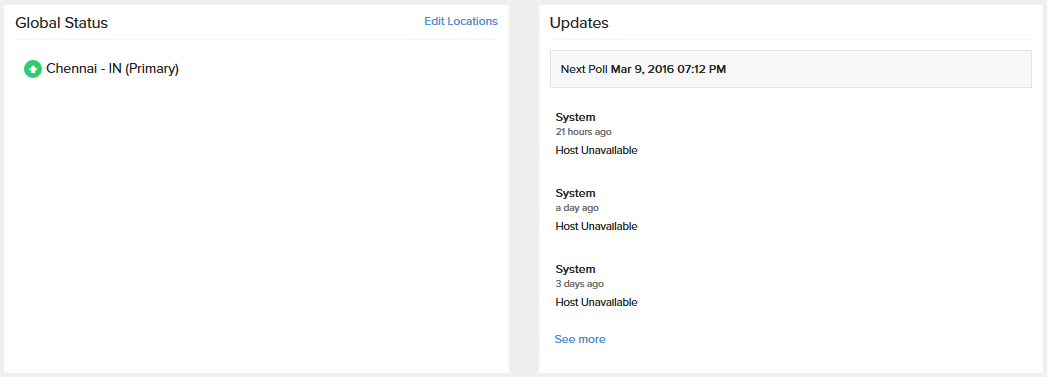
You can view the real-time data from the various poll cycles and it includes the outages and trouble alerts data.
Down/Trouble History
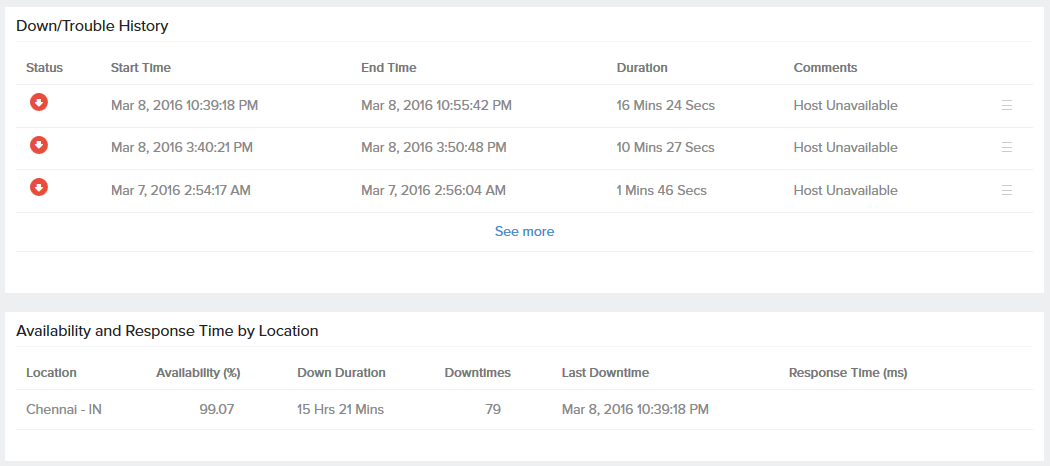
It offers detailed insight into the trouble history of your monitor. You can view the status, the exact downtime, duration, and specific reason for the down status.
Availability & Response Time by Location
Availability and Response Time of the Ping monitor for each and every monitoring location is shown in a tabular format. The total availability percentage, and response time (ms) with down duration from each monitoring location can be inferred from this data.
Outages
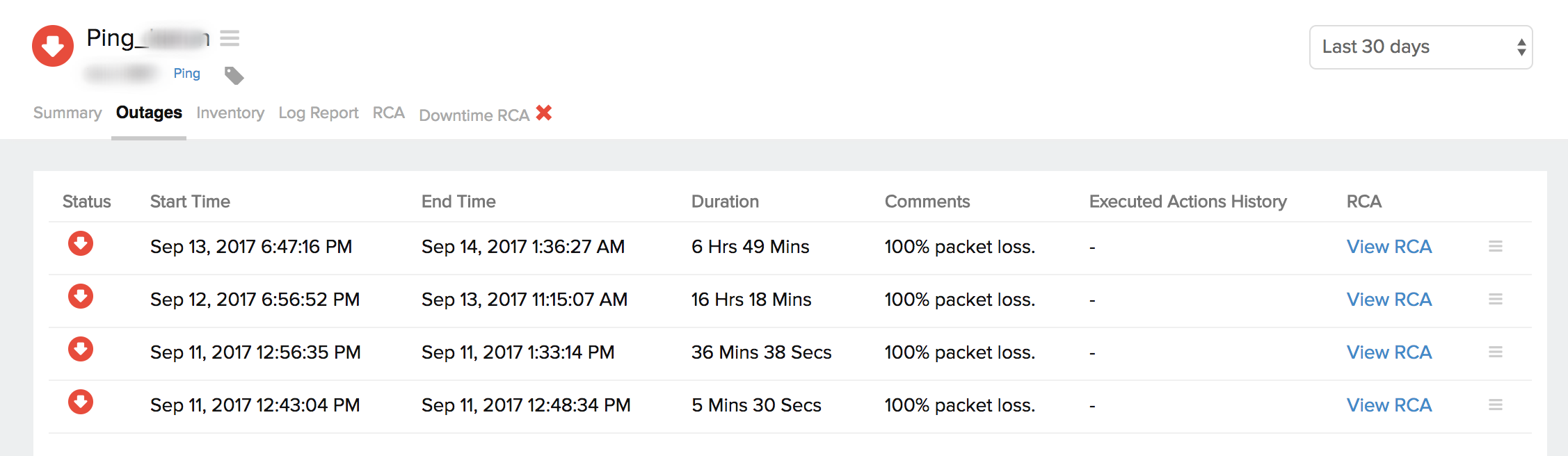
You can access the Outages tab in your monitor's details page to gather detailed insights on the various outage and maintenance downtimes. It provides you with sufficient information to troubleshoot issues. You'll also be able to access the root cause analysis reports for your various outages. On accessing the  icon of a listed monitor outage or maintenance, you'll be shown the options to:
- Mark as Maintenance: Mark an outage as Maintenance
- Mark as Downtime: Mark a Maintenance as Downtime
- Edit Comments: Add/Edit Comments
- Delete: Delete an Outage/Maintenance permanently
Root Cause Analysis (RCA) Report
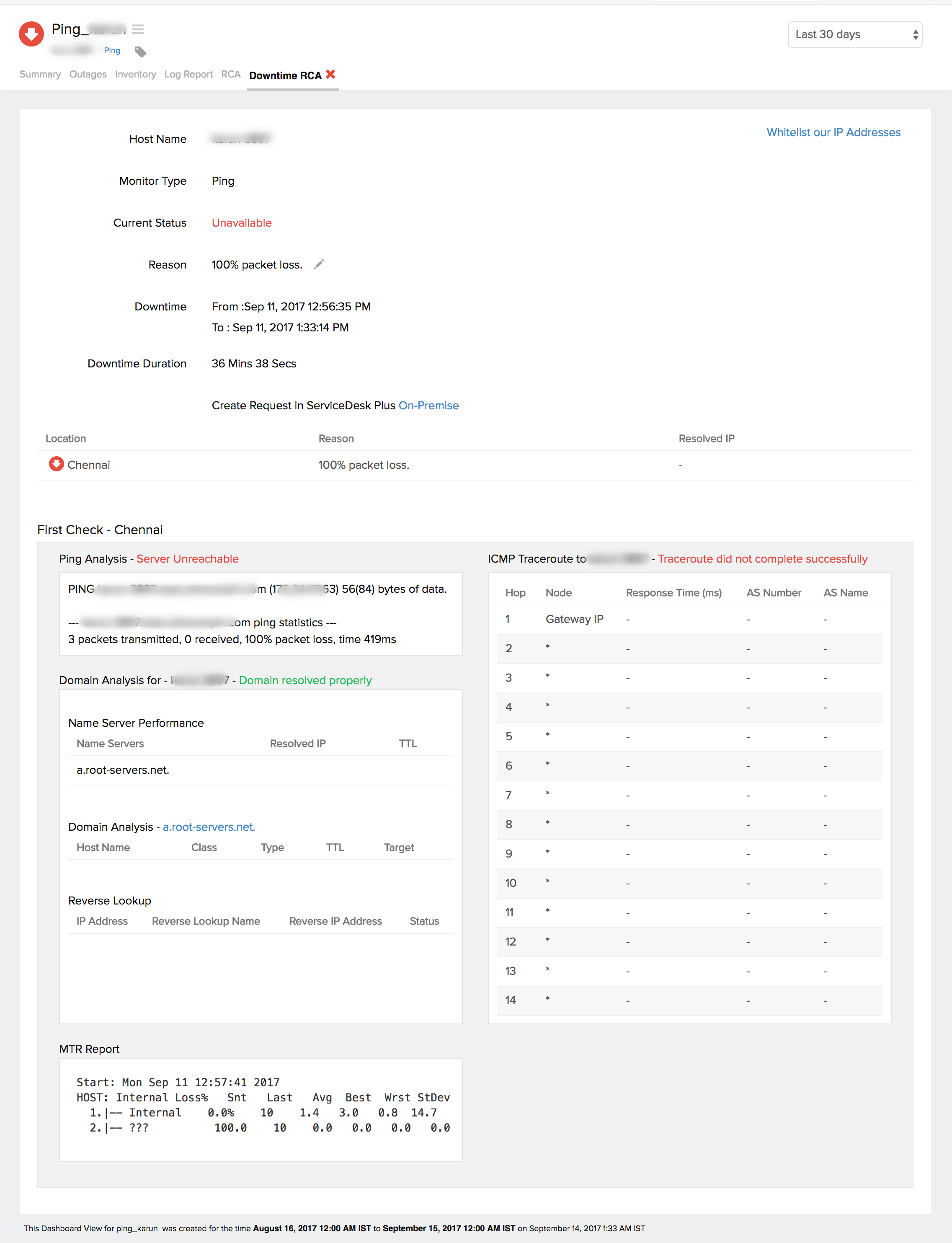
You can retrieve indepth root cause analysis report for your DOWN monitors after 150 seconds of the monitor reporting the outage. RCA Report gives basic details about your monitor, outage details, recheck details and reasons for the outage. Root Cause Analysis automatically generates a plethora of information to arrive at a definite conclusion as to what triggered a downtime. RCA intends to determine the root cause of specific downtime or performance issue. A normal RCA report will comprise of the following details:
- Checks from Primary location and re-checks from Secondary location.
- Ping Analysis
- DNS Analysis
- ICMP based Traceroute
- MTR Report
- MTR based Network Route
- Conclusion
Inventory and Notes
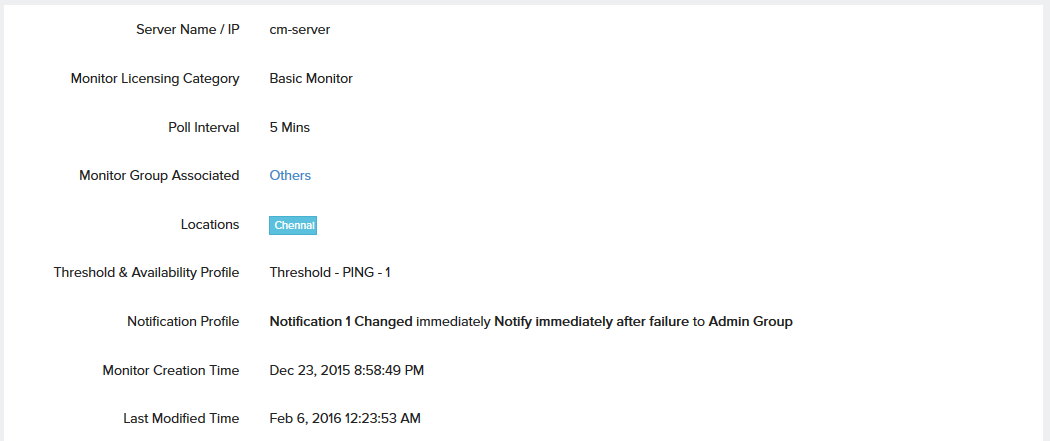
This section captures the basic monitor information and also its various configuration settings including polling locations, poll interval, licensing type, and more.
Log Report
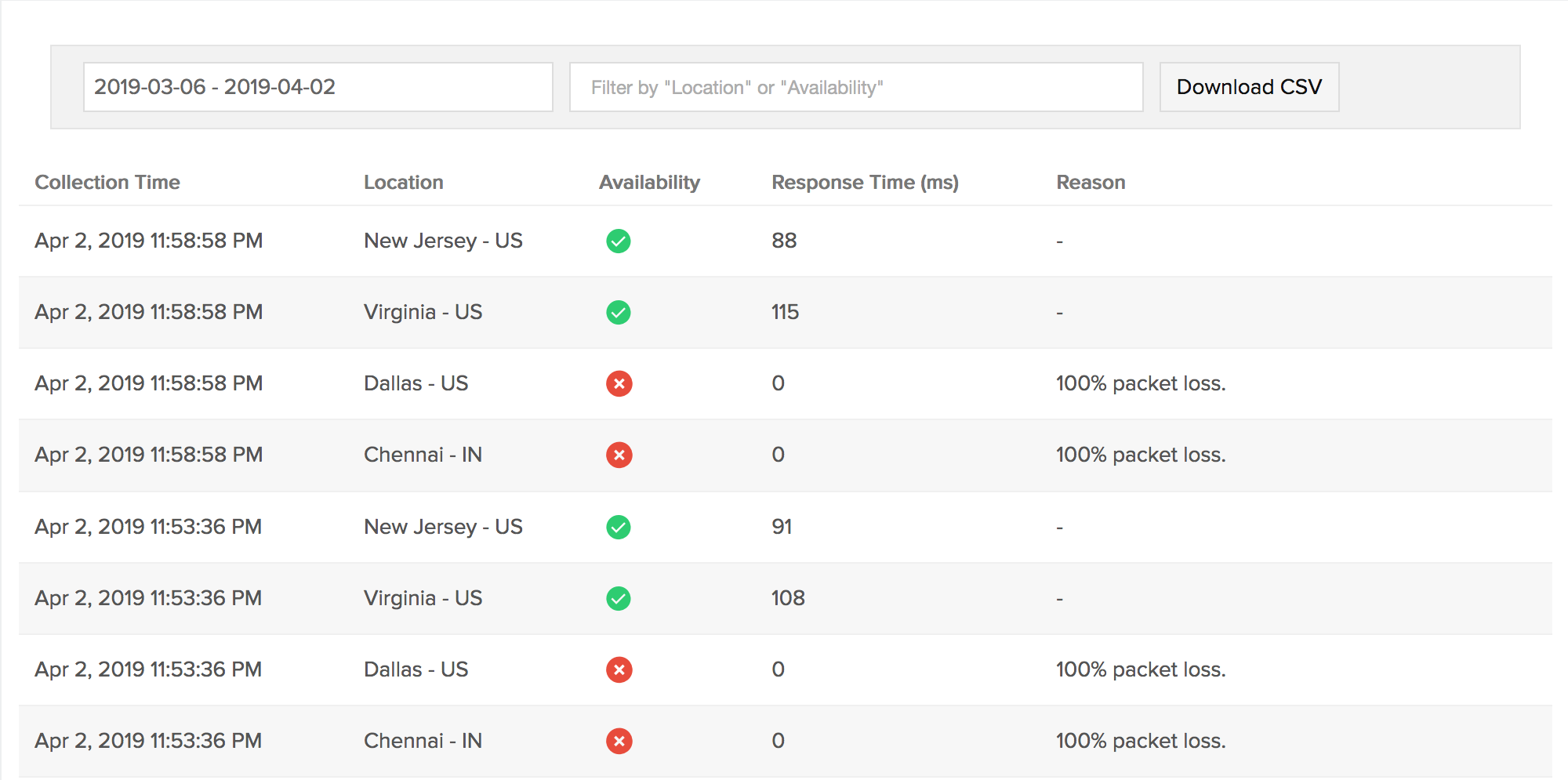
With our integrated log records for individual monitors, you can get an indepth knowledge about the various log details for the configured monitor, over a custom period. You can also filter the log based on location and availability. You have an option to download the log report in CSV format.
Learn more: How to set up a Ping Monitor?